Test it, and tell people.
Dagric OS is a Debian 13 desktop with KDE Plasma, built for the person leaving Windows 10 rather than for someone who already runs Linux. There is a free edition and a Pro edition at a one-time $39. It is made by IMPRESSIONSDIRECT360 LLC, an independent company in the United States.
This page is not a pitch. It exists so a hands-on test is easy to run and hard to get wrong: where the ISO is, how to check it is ours, what to click in what order, and — the part most of these pages leave out — a list of the things we ship that we have not yet proven. If you find a limitation on this page after you find it on the machine, we have wasted your time and earned none of your trust.
Version 1.0 “Foundation” · GPG-signed releases · no independent review has been published yet, which is the whole reason this page is here
Current release
The two editions are one system, not two. Pro is the same base with the creative, gaming, developer and Windows-app suites already installed, and all seven desktop layouts rather than three. Anything you find wrong in one edition is almost certainly wrong in the other, so a review of the free edition is a review of the product.
Source repository · public issue tracker · machine-readable release record · test matrix and known gaps
Download and verify
Both editions are on the download page. The free ISO is a direct link — no form, no email address, no account. The Pro ISO is delivered after checkout; if you need it for a review, say so through the contact form.
Please verify before you write about it — a corrupted download is indistinguishable from a bad product until you check. Put SHA256SUMS, SHA256SUMS.sig and the signing key in the folder holding the ISO, then run the three commands the download page gives:
gpg --import dagric-signing-key.asc
gpg --verify SHA256SUMS.sig SHA256SUMS
sha256sum -c SHA256SUMS
On Windows, without installing anything:
Get-FileHash .\dagric-os-1.0-amd64.iso in PowerShell, then compare the hash it
prints against the matching line in SHA256SUMS. That checks the file
arrived intact; it does not check who signed it, so use the GPG route if the provenance is part
of what you are testing.
The signing key's fingerprint is published on the security page. Check it there rather than trusting the copy you just imported — a key that vouches for itself vouches for nothing.
The finished images publish their own package inventories: the Free manifest and Pro manifest. They are extracted from the ISOs during the gated release, rather than copied from a stale build folder.
How to test it properly
In this order. Steps two and three are the ones most reviews skip, and they are the two that decide whether the rest of the test means anything.
- Write the ISO to a USB stick. 8 GB or larger. Rufus or balenaEtcher
on Windows; the Disks utility or
ddon Linux. Write the image as-is — it is a hybrid ISO and needs no special mode. - Boot the live session. Both UEFI and legacy BIOS machines boot from the same stick. The whole desktop runs from the stick with nothing written to your disk, so this step is reversible by pulling the stick out.
- Run “Check This PC” before you install anything. It is an icon on the live desktop, sitting right beside the installer. It reports in plain language on Wi-Fi and network, graphics and screen, sound, camera and printer, whether Secure Boot is on, the battery if it is a laptop, and whether your drives have room. It mounts nothing and unlocks nothing. This is the tool that answers “will it work on this machine”, and a spec list cannot — so run it on every machine you test, including the ones you expect to fail.
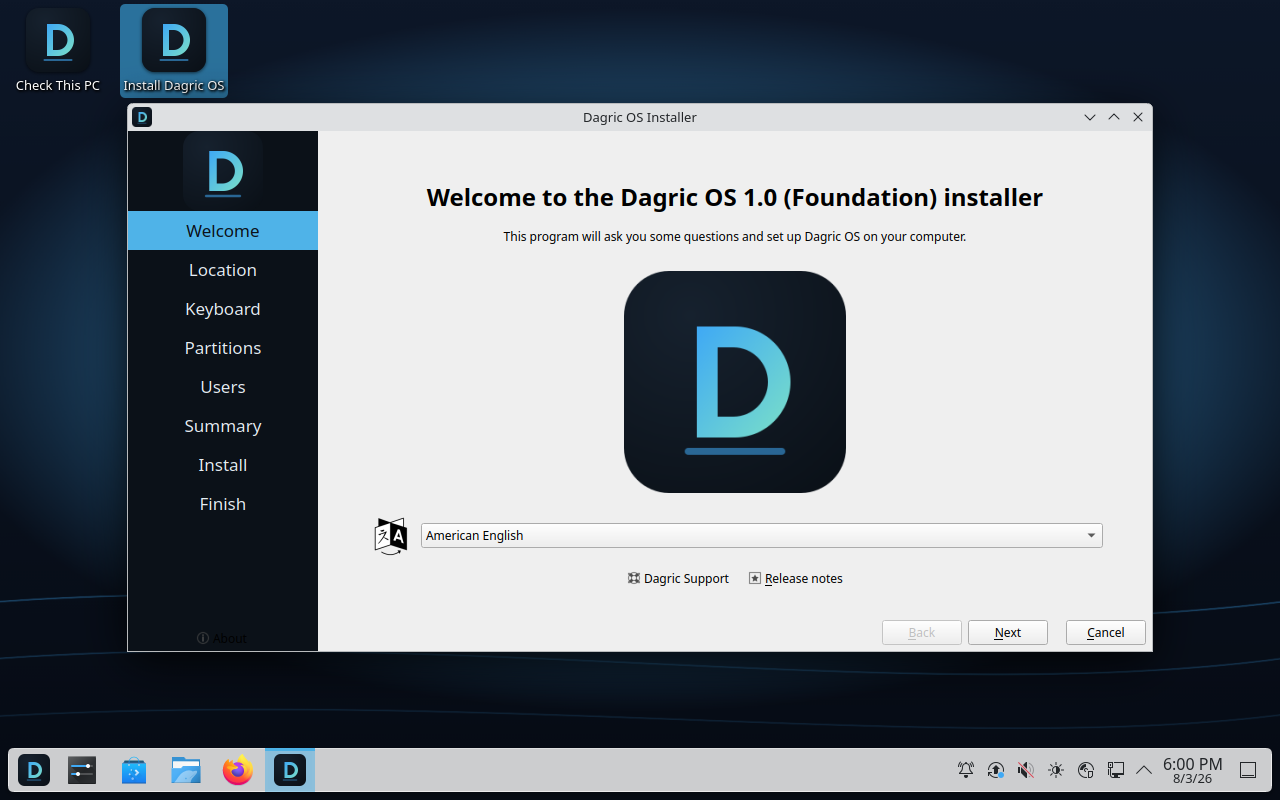
- Run the installer. The other icon on the live desktop. It names all of its steps up front and writes nothing to the disk until you confirm at the Summary step, so every screen before that one can be backed out of. Worth testing both Erase disk and Install alongside if you have a machine to spare.
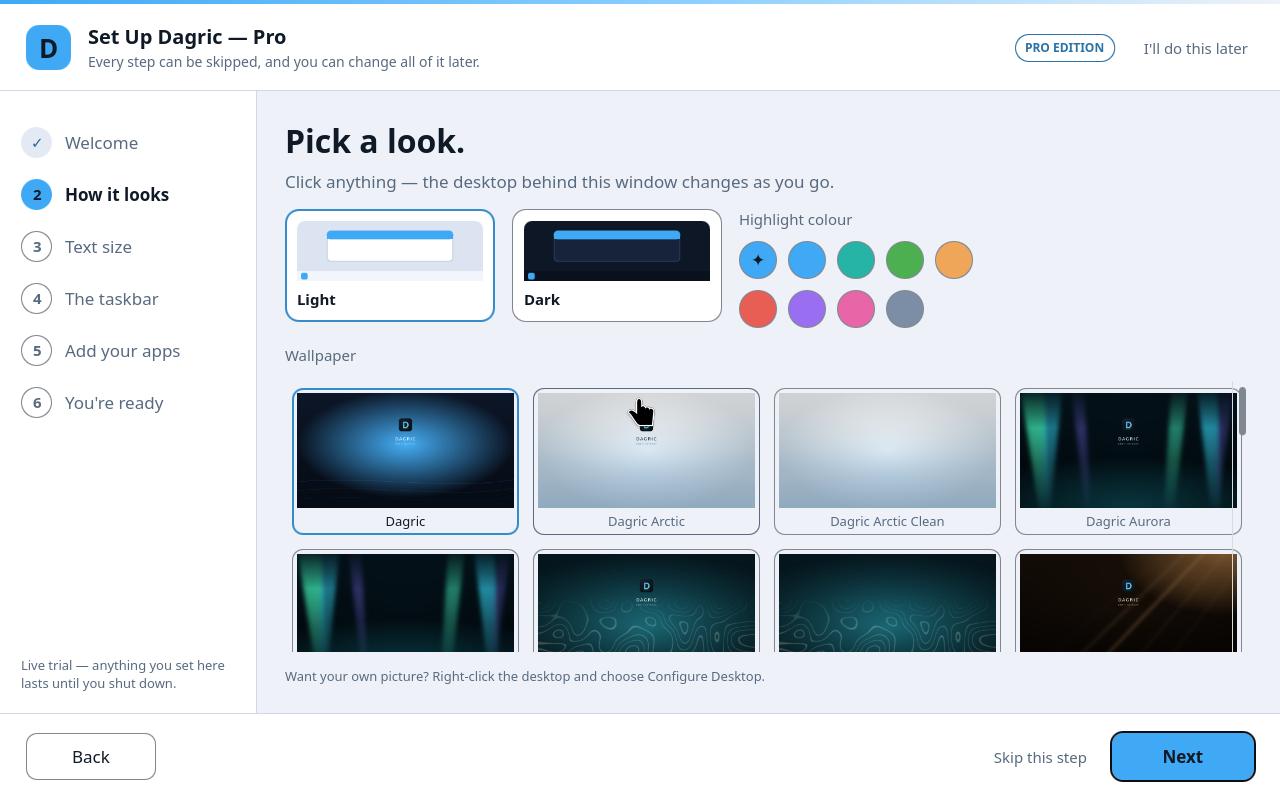
- Let the first-run wizard run. It opens by itself at the first sign-in after install — six steps: Welcome, How it looks, Text size, The taskbar, Add your apps, You're ready. Every step can be skipped and everything it sets can be changed later.
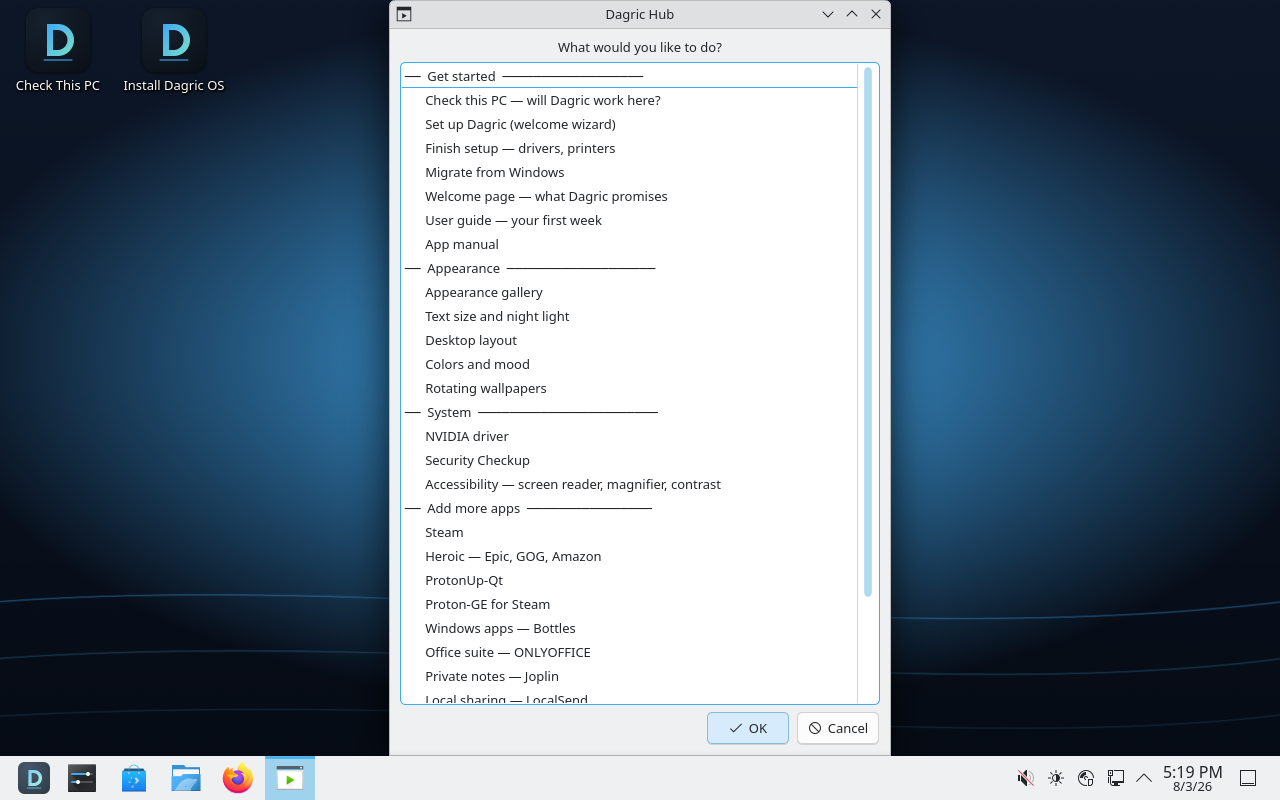
- Open the Dagric Hub. Press Meta, type Hub. This is the one window gathering the owner tools: graphics drivers, Finish Setup for printers, the Security Checkup, the layout switcher, and the one-click installers for Steam, Bottles, Heroic and Ollama. None of those optional applications is bundled — each installs only when you click them, which is a claim worth checking rather than repeating.
- Switch layouts in Dagric Looks. In the Hub under Appearance, or press Meta and type Looks. Three layouts on the free edition, all seven on Pro. Switching keeps your apps, files and settings, and switching back is one click — which is the claim to try to break.
- Break something, then roll it back. Reboot, and in the boot menu open Dagric snapshots, then pick the snapshot from before the change. This works on the default btrfs install only: choose ext4 at the Partitions step and there is no rollback at all, which is a caveat we would rather you printed than discovered.
What we have tested, and what we have not
This is the section we would most like you to read. The left column is what the product does; the right column is how far it has actually been taken, which is not the same thing.
| What | How far it has been taken |
|---|---|
| UEFI and BIOS install | Tested — both firmware modes, end to end, in the virtual-machine harness. |
| The installer | Tested — run through every step to a booting system, in a virtual machine. |
| First-run wizard | Tested — run end to end after a fresh install. |
| Dagric Looks layouts | Tested — applied and switched between, in a virtual machine. |
| Snapshot rollback | Tested — rolled back from the boot menu on a default btrfs install, in a virtual machine. |
| Six-language coverage | Mechanically complete; human language review pending — German, Spanish, French, Italian and Brazilian Portuguese catalogues are byte-synchronised with their source, compiled, and contain zero fuzzy or untranslated active messages. Placeholder, URL, product-name and safety-wording guards pass. The completed machine translations have not had native-speaker review, so this is not presented as native linguistic approval. |
| Accessibility | Tested — a vendor self-assessment checked against the built image, published in full with its gaps as the conformance report. It is not an independent audit and does not claim to be. |
| Secure Boot with enforcing firmware | Not yet verified — it ships, and it has only ever been exercised in virtual machines. It has never booted on a physical machine with Secure Boot actually enforcing. |
| Full-disk-encryption install | Not yet verified — the encrypted install path ships and has not been run end to end on real hardware. |
| A live screen-reader pass | Not yet verified — Orca ships with its speech engine, and the build refuses to produce an image if the speech chain is broken. Nobody who depends on a screen reader has sat down with it and told us what it is like. |
| Wi-Fi and GPU compatibility | Not yet verified — there is no broad hardware matrix. What we know is what Debian 13 supports; we have not measured it across a range of real machines. |
The four rows marked not yet verified are shipped, not proven. They work in a virtual machine, and a virtual machine is not a laptop. We would far rather a reviewer found the gap than a customer did — so if one of them breaks on your hardware, that is a real finding, it belongs in your piece, and we will not write to argue with it. The full list of what we know is unfinished is on the security page.
Known limitations
Not of the software — of the project around it. These are the fair things to hold against us, stated before you have to find them.
- Nobody independent has reviewed it. The project is new, the domain was registered in July 2026, and there is not one third-party test of Dagric OS in existence. Any confidence in it currently rests on our own word, which is exactly the wrong thing for it to rest on.
- The source and issue history are young. The public repository and issue tracker are the proof path, not proof of maturity. A new public project can still have gaps nobody has reported yet.
- Hardware coverage is narrow. The public test record distinguishes VM checks from physical-machine evidence; there is not yet a broad compatibility matrix across retail PCs.
Press assets
Official description
Dagric OS gives Windows 10-era PCs a private, customizable second life. It requires no Dagric account, adds no Dagric telemetry, and can be tried before installation. Dagric OS Free is complete for everyday use; Dagric OS Pro adds preconfigured creator, developer, gaming, privacy, and Windows-app suites for a one-time $39. Dagric OS is published by IMPRESSIONSDIRECT360 LLC and is built on Debian and KDE Plasma.
Use Dagric OS in ordinary copy, Dagric OS Pro for the paid edition, and IMPRESSIONSDIRECT360 LLC when naming the legal publisher or seller. The public brand-system.json records the approved hierarchy, colors, message roles, and content pillars.
These are the files this site uses. You may use them in coverage of Dagric OS — no permission to ask for, no approval step, and no conditions attached to what the coverage says. Every screenshot below is a real capture from a booted system, not a mockup or a render; where a frame shows something worth knowing, it is described rather than tidied.
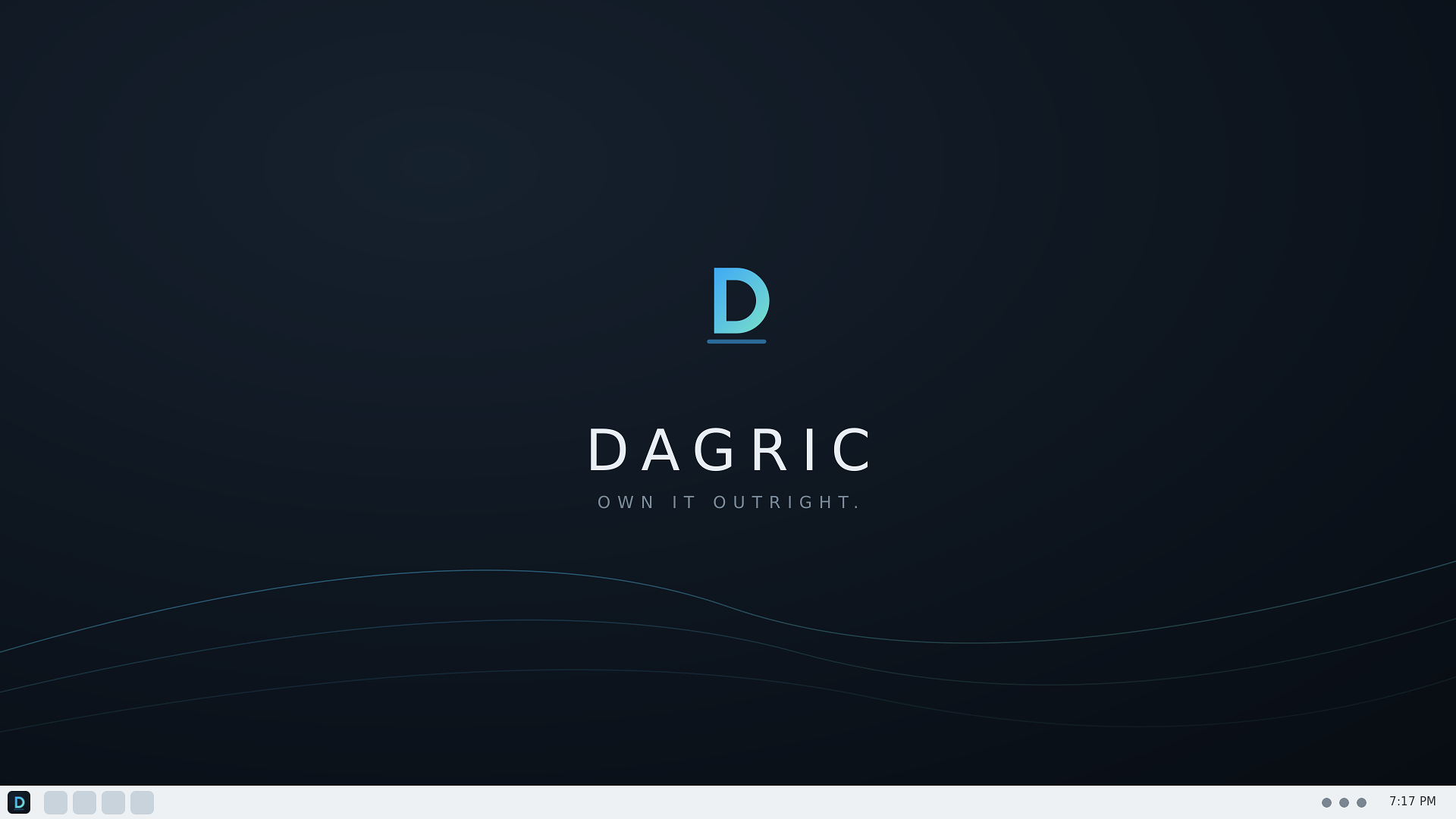
- hero-desktop.png — the desktop at 1920×1080; the image this site uses for link previews.
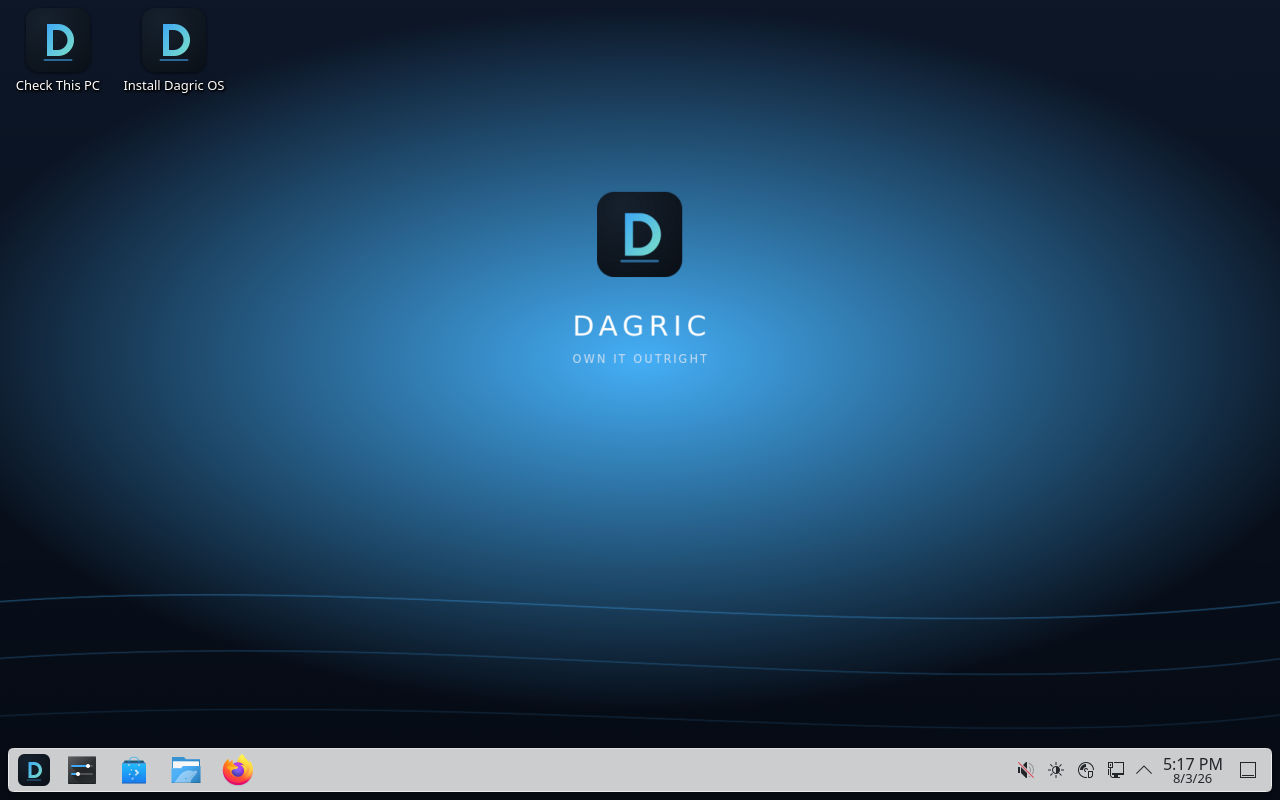
- shot-desktop.png — the desktop as it lands: branded wallpaper, two icons, an empty taskbar.
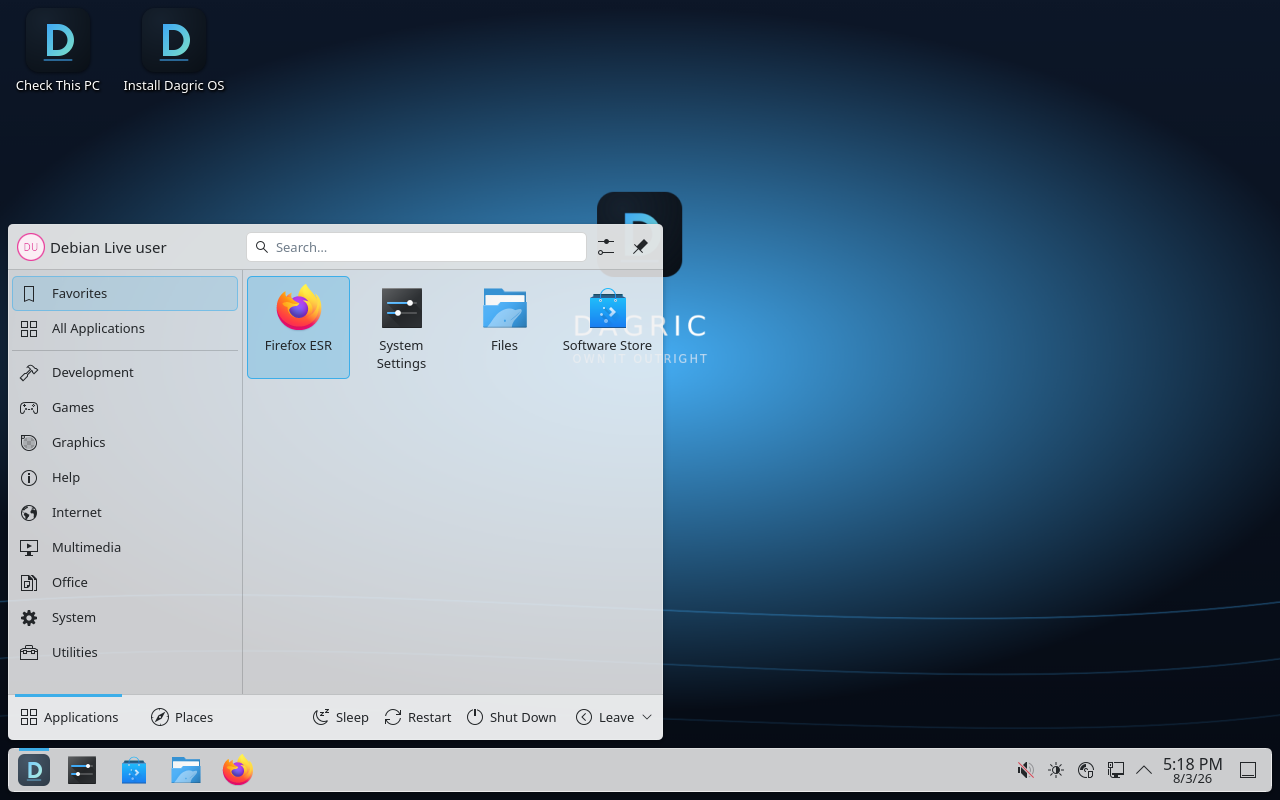
- shot-launcher.png — the application launcher open. Captured in a live session, so the user shows as “Debian Live user”; on an installed machine that is the owner's own name.
- shot-hub.png — the Dagric Hub, with the owner tools grouped.
- shot-appearance.png — the first-run wizard on its “How it looks” step. This one is captured from the Pro edition, which is why it carries a PRO EDITION badge.
- shot-installer.png — the installer, with its steps listed down the side.
- dagric-logo.png — the logo, 256×256.
- Continuous video: one-minute live tour, 30-second file and desktop demo, and 15-second personalization demo. Each keeps one running Dagric desktop on screen, with no burned captions or composite product frames.


Contact
Use the contact form and pick Business / press from the topic list. A human reads every message. We have not published a reply time, so we are not going to quote you one — but if you are working to a deadline, put it in the message and it will be treated as one.
If what you want is a correction rather than a comment: send it the same way. A factual error on this site is a bug, and it is fixed the same day it is pointed out.